- Works on Free, Pro, and Business plans. No paid WAF required.
- Rules 4 and 5 from V3 are merged into one, freeing a rule slot
- New rule uses Cloudflare's native AI Crawler Control to block AI scrapers
- Covers bots, VPNs, aggressive crawlers, and TOR exit nodes
- Copy-paste ready. No custom code or plugins needed.
If you are already running the V3 rules, here is what changed. This is not a full rewrite. It is two targeted updates that make the ruleset more efficient and add a new layer of protection that was not possible before.
Deploy the Web Agency Hero WAF Rules V3 ruleset, with AI Crawl Control, to one site or several under your Cloudflare account at once. Try the Rules Deployer.
Need to deploy your own custom expressions instead? Paste your own Cloudflare WAF expressions into up to 5 rule slots and push them to one or more zones at once. Rules are deployed in order, exactly as entered. Try the Custom Deployer.
This is an updated version of my Cloudflare WAF Rules V3. After Cloudflare released native AI Crawler Control, I updated the ruleset to take advantage of it. If you are already running V3, you do not need to start over. Only the last two rules change.
Rules 1 through 3 are unchanged from V3. They are the same battle-tested rules that have helped stop thousands of attacks on my clients' sites and across The Admin Bar Facebook Group. The difference is in rules 4 and 5 from V3, which are merged into one cleaner rule, freeing a slot that is now used for Cloudflare's built-in AI Crawl Control.
Before You Start
All Rules at a Glance
Allow Good Bots
✓ AllowThe "Allow Good Bots" rule grants full, unrestricted access to bots that you approve of, including those you manually add and those classified as safe by Cloudflare.
Cloudflare provides information about bots in the verified bots categories.
While you can customize this list to suit your needs, Cloudflare generally does an excellent job of allowing legitimate bots through its Known Bot and Verified Bot categories.
Whitelisting
For this set of rules, I did not include a third party services allow list because I wanted to identify which ones are not already covered by Cloudflare's Known Bots and Verified Bot Rules. Many of the third party services you use might already be included in their rules, so you may not need to take additional steps.
Note
If you're using my previous rules, you might already have a Good Bot rule in place. You can continue using that rule, but make sure to add Cloudflare Verified Bots to it. See the section on modifying the Allow Good Bots rule below.
What it does
Grants unrestricted access to verified, legitimate bots, search engines, monitoring tools, advertising crawlers, accessibility tools, webhooks, and feed fetchers, before any other rule can block them.
Why it matters
Without this rule first in the chain, your subsequent block and challenge rules will also catch Googlebot, UptimeRobot, and other bots you actually want on your site. Order is everything.
Bot categories covered
- Search Engine Crawlers (Google, Bing, DuckDuckGo)
- Monitoring & Analytics, Advertising, Page Preview
- Academic Research, Security Services, Accessibility Tools
- Webhooks, Feed Fetchers, Let's Encrypt
Known Bot vs. Verified Bot Categories
The Known Bot entry (cf.client.bot) is a broad pass that allows any request Cloudflare has identified as a verified bot, regardless of which category it falls under. In practice, this means it covers everything on the Cloudflare Verified Bots list, including SEO crawlers, AI crawlers, and other categories you might not want.
If you want more granular control, remove the Known Bot entry and rely solely on the Verified Bot Categories selection. That lets you explicitly allow Search Engine Crawlers, Monitoring tools, and Webhooks while leaving out categories like Search Engine Optimization or AI Crawlers.
Gotcha, Add Your Server IP
To allow cron jobs to run properly, such as those used for scheduling blog posts and backend processing within your WordPress site, you need to whitelist your server IP address. Without it, these requests can get blocked by the hosting provider rule.
Whitelisting your server IP: In your main (Allow Good Bots) rule, add an "Or" condition from the last entry. Then from the drop down select IP Source Address → Is in → YOUR SERVER IP. Add both your IPv4 and IPv6 address.
Finding Your Server's IPv6
Many web hosts do not display the server IPv6 address in their control panel. Here are three ways to find it:
- Cloudflare Activity Log (easiest): In your Cloudflare dashboard, go to Security → Events and look for a request to wp-cron.php. Your server's IP will show as the source. This works for both IPv4 and IPv6.
- DNS AAAA lookup: Do a reverse AAAA DNS lookup on your server's hostname to get the IPv6 address directly.
- Traceroute fallback: If your host does not display the server hostname either, run a traceroute from your server's IPv4 address to identify the hostname first, then do the AAAA lookup.
Allow Good Bot Screenshot
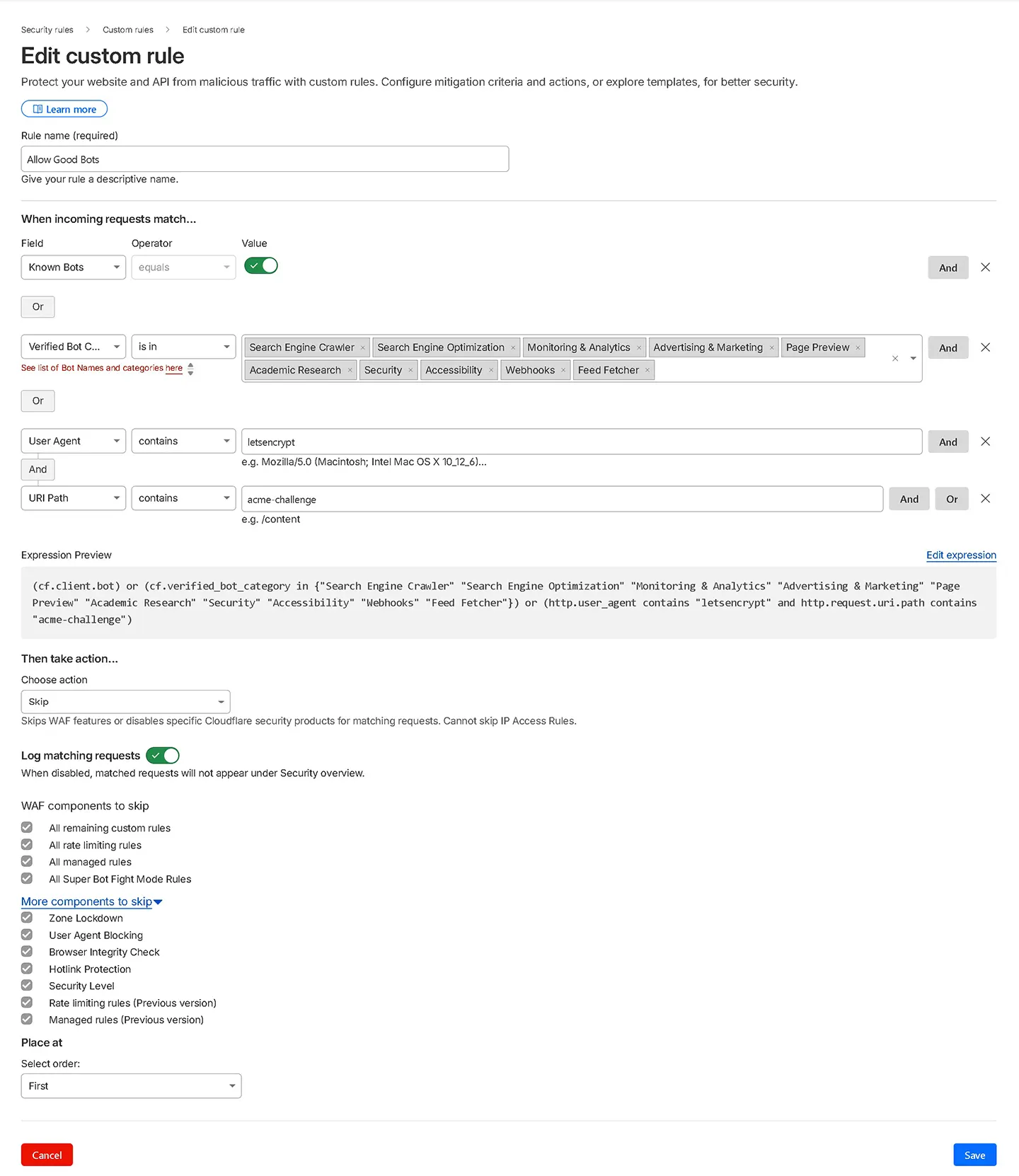
Expression
(cf.client.bot) or (cf.verified_bot_category in {"Search Engine Crawler" "Search Engine Optimization" "Monitoring & Analytics" "Advertising & Marketing" "Page Preview" "Academic Research" "Security" "Accessibility" "Webhooks" "Feed Fetcher"}) or (http.user_agent contains "letsencrypt" and http.request.uri.path contains "acme-challenge")Aggressive Crawlers
Managed ChallengeThe "Aggressive Crawlers" rule is designed to block overly persistent bots. While it effectively prevents many fake bots, it can also block aggressive SEO crawler bots.
How to block the aggressive crawlers. (CAREFUL WITH THIS ONE)
To block aggressive SEO crawler bots like Ahrefs and SEMrush, you need to remove the Known Bot toggle from your Allow Good Bots rule. By default I do include it to make sure legitimate services are not blocked, but sometimes you don't want all of those verified services having access to your site. If the Known Bot toggle is present, it will allow everything under Cloudflare's Verified Bots even if you don't want them. Additionally, within the Verified Bot Categories, remove "Search Engine Optimization" from the selection so SEO crawlers can't slip through the Allow rule.
For a more targeted approach, you can add the specific user agents of these SEO crawler bots directly to your Block List instead of removing the Known Bot toggle entirely.
What it does
Blocks overly persistent bots that hammer your site with requests but provide no benefit, including Yandex, Sogou, SEMrush, Ahrefs, Baidu, and unverified generic crawlers.
Why it matters
Aggressive SEO crawlers consume server resources around the clock. Blocking them reduces server load. If you run your own SEMrush/Ahrefs audits, temporarily disable this rule first.
Aggressive Crawlers Screenshot
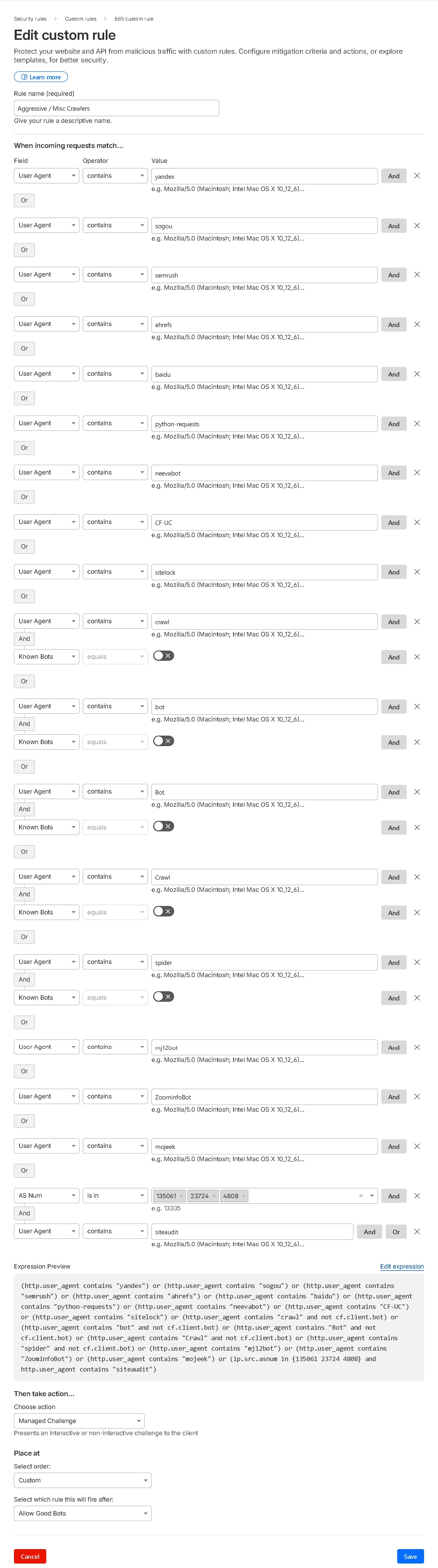
Expression
(http.user_agent contains "yandex") or (http.user_agent contains "sogou") or (http.user_agent contains "semrush") or (http.user_agent contains "ahrefs") or (http.user_agent contains "baidu") or (http.user_agent contains "python-requests") or (http.user_agent contains "neevabot") or (http.user_agent contains "CF-UC") or (http.user_agent contains "sitelock") or (http.user_agent contains "crawl" and not cf.client.bot) or (http.user_agent contains "bot" and not cf.client.bot) or (http.user_agent contains "Bot" and not cf.client.bot) or (http.user_agent contains "Crawl" and not cf.client.bot) or (http.user_agent contains "spider" and not cf.client.bot) or (http.user_agent contains "mj12bot") or (http.user_agent contains "ZoominfoBot") or (http.user_agent contains "mojeek") or (ip.src.asnum in {135061 23724 4808} and http.user_agent contains "siteaudit")Challenge Large Cloud Providers & Country
Managed ChallengeWhat it does
Issues a managed challenge to traffic from major cloud VPS providers (Google Cloud, Amazon EC2, Microsoft Azure) and optionally to visitors from outside your client's primary country.
Why it matters
Attackers spin up VPS instances on these platforms to run rapid distributed attacks. Real humans pass the managed challenge invisibly, bots don't. Legitimate businesses rarely send traffic from raw cloud IPs.
Note
Legitimate services do use Amazon, Google, and Azure, so if you're using a third party that needs to connect to your site, you might need to whitelist their IPs in the Allow Good Bot rule. However, Cloudflare's Known & Verified Bots list might already include these services, so you may not need to take additional steps. It depends on the specific service you're using.
Gotcha, Set the Right Country
The expression below uses "US" as a placeholder. Change this to match your client's actual audience country code before activating. Getting this wrong will challenge most of your real visitors.
Challenge Large Cloud Providers & Country (Screenshot)
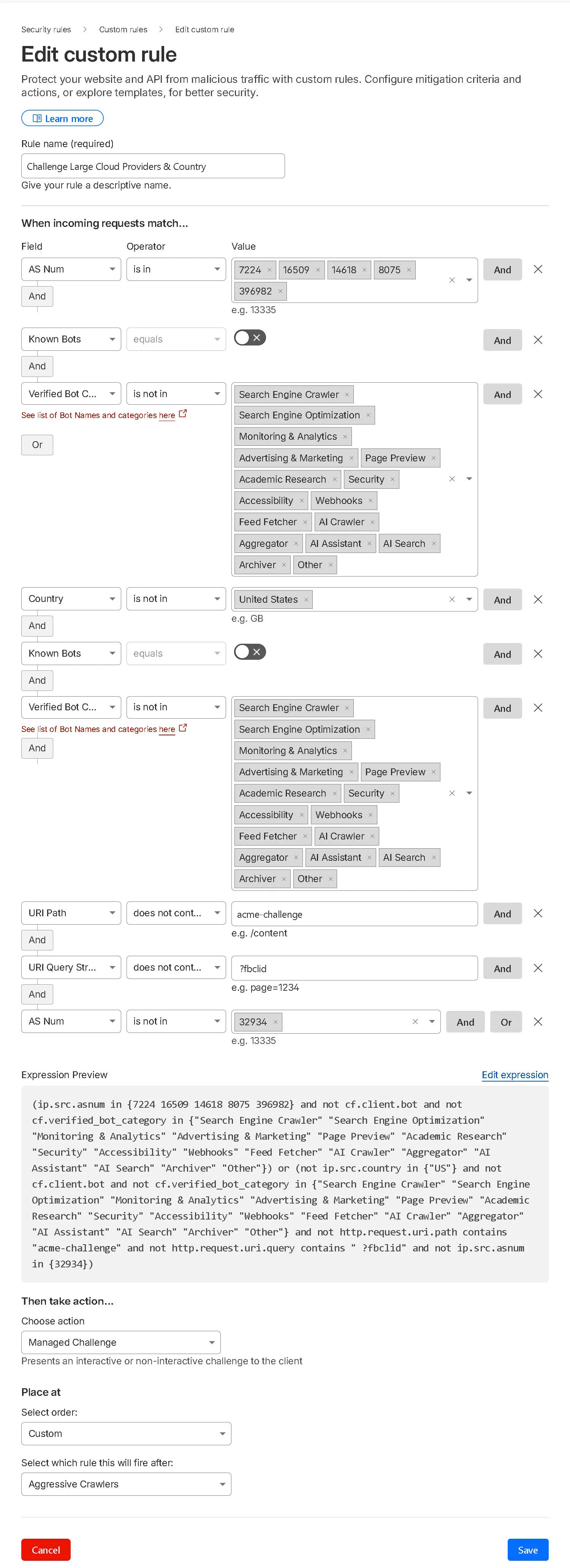
Expression (with country challenge)
(ip.src.asnum in {7224 16509 14618 8075 396982} and not cf.client.bot and not cf.verified_bot_category in {"Search Engine Crawler" "Search Engine Optimization" "Monitoring & Analytics" "Advertising & Marketing" "Page Preview" "Academic Research" "Security" "Accessibility" "Webhooks" "Feed Fetcher" "AI Crawler" "Aggregator" "AI Assistant" "AI Search" "Archiver" "Other"}) or (not ip.src.country in {"US"} and not cf.client.bot and not cf.verified_bot_category in {"Search Engine Crawler" "Search Engine Optimization" "Monitoring & Analytics" "Advertising & Marketing" "Page Preview" "Academic Research" "Security" "Accessibility" "Webhooks" "Feed Fetcher" "AI Crawler" "Aggregator" "AI Assistant" "AI Search" "Archiver" "Other"} and not http.request.uri.path contains "acme-challenge" and not http.request.uri.query contains " ?fbclid" and not ip.src.asnum in {32934})Challenge Large Cloud Providers - Without Country (Screenshot)
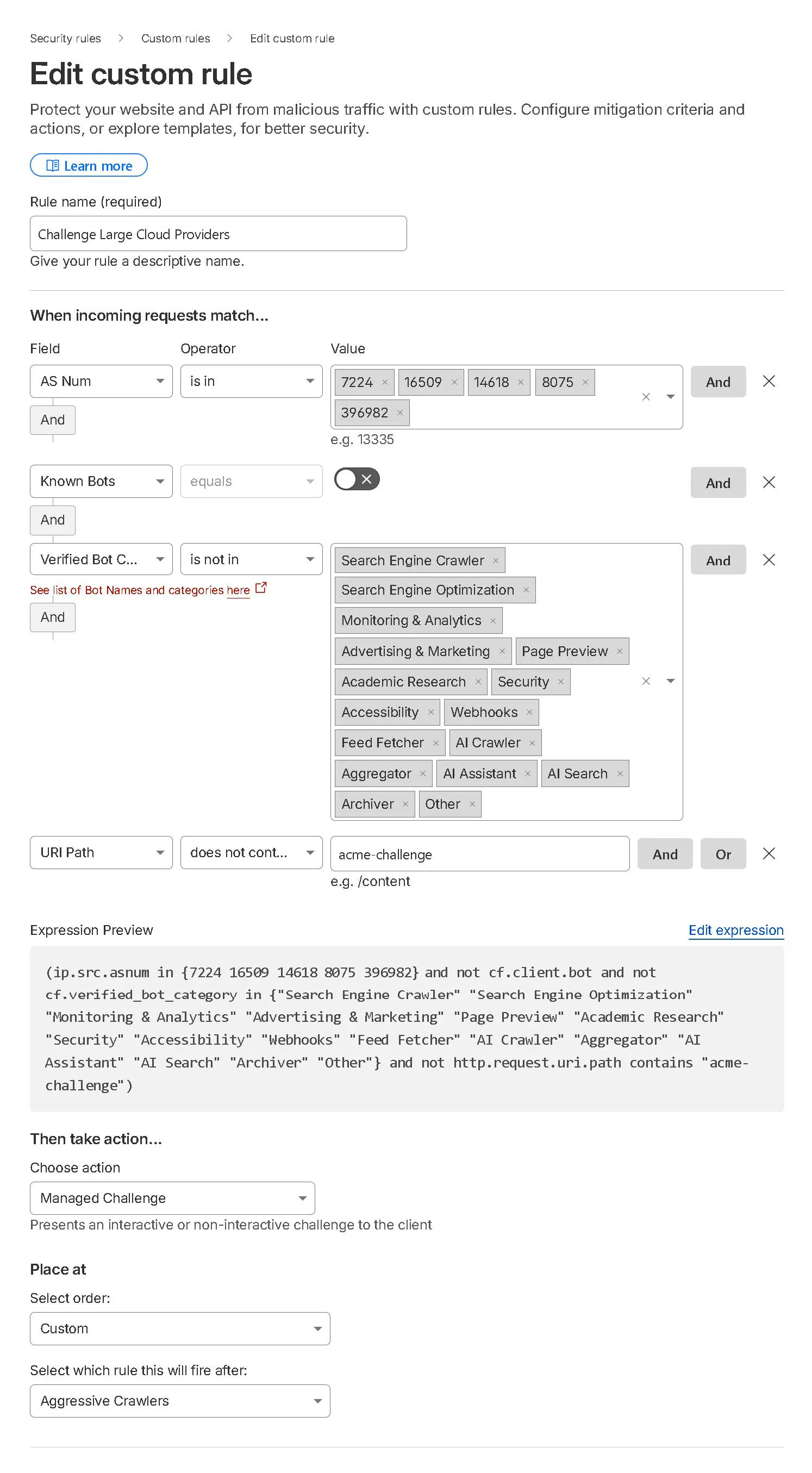
Expression (without country challenge)
(ip.src.asnum in {7224 16509 14618 8075 396982} and not cf.client.bot and not cf.verified_bot_category in {"Search Engine Crawler" "Search Engine Optimization" "Monitoring & Analytics" "Advertising & Marketing" "Page Preview" "Academic Research" "Security" "Accessibility" "Webhooks" "Feed Fetcher" "AI Crawler" "Aggregator" "AI Assistant" "AI Search" "Archiver" "Other"} and not http.request.uri.path contains "acme-challenge")
VPN, Hosting Providers, Dangerous Paths & TOR
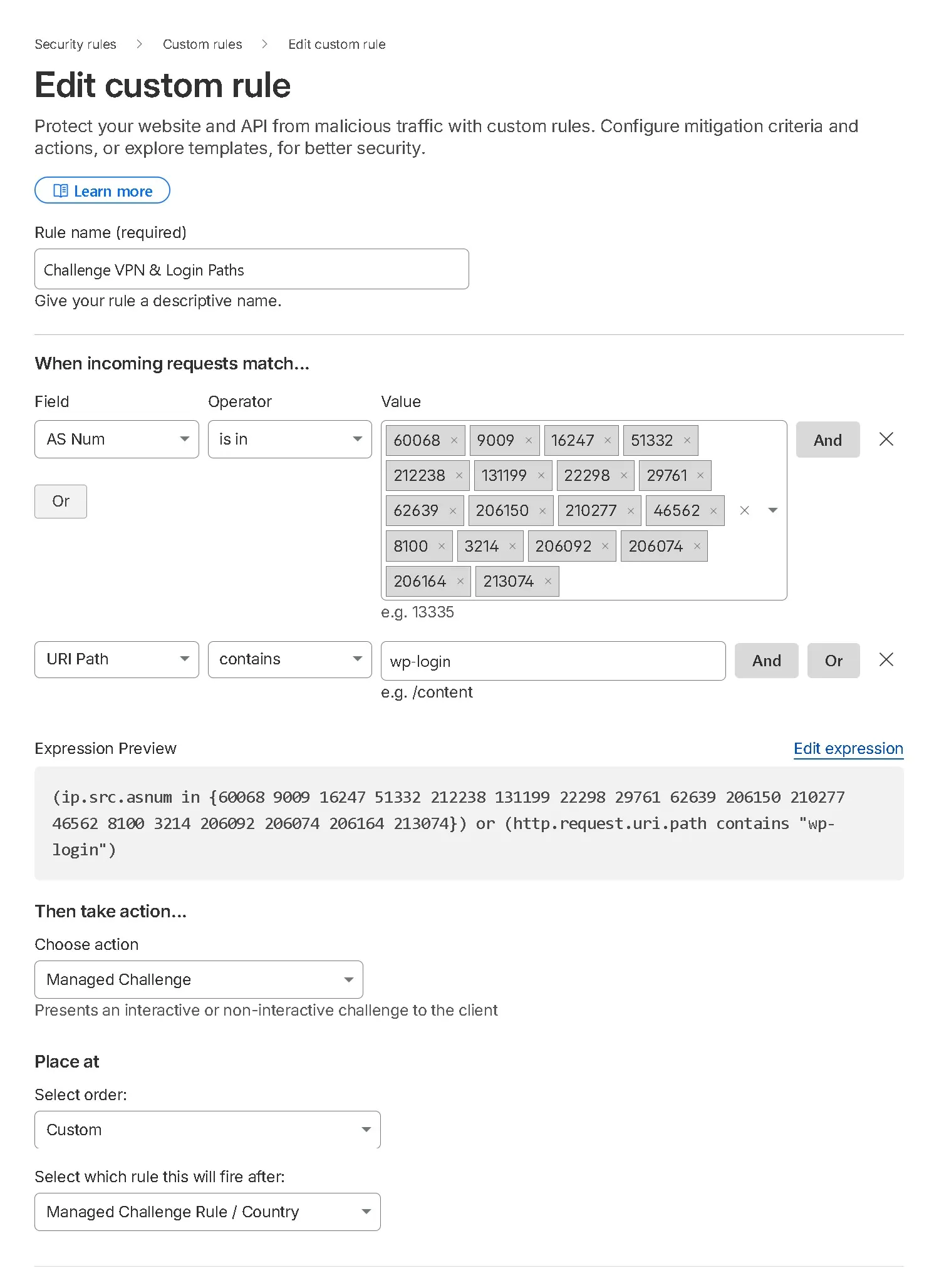
Managed ChallengeWhat it does
Issues a managed challenge to requests from known VPN providers, a compiled list of web hosting provider ASNs, anyone hitting wp-login.php, requests for sensitive file paths (xmlrpc.php, wp-config.php, wlwmanifest.xml), and all TOR exit nodes.
Why it matters
Credential stuffing, brute force, and automated attacks almost always come through VPNs and hosting provider IPs. No legitimate visitor ever needs to hit wp-config.php or xmlrpc.php, and no real customer browses through TOR. Combining these into one rule frees up your fifth rule slot for AI Crawl Control.
Note on VPNs
While legitimate users do use VPNs, hackers and spammers often exploit them too. In my experience, the negative impact from malicious visitors outweighs the benefits for legitimate users. That's why I restrict full access from VPN providers and implement a managed challenge through Cloudflare instead.
Note on TOR
I don't allow TOR or TOR exit nodes with Cloudflare. Legitimate users may use TOR, but so do the bad guys. I prefer to block them.
Pro tip: Cloudflare Access provides a full zero-trust login layer in front of wp-admin and wp-login.php at no cost for up to 50 users per account. It's more robust than a WAF challenge alone.
Note on Hosting Providers
On very rare occasions, someone might use their own custom VPN or something like VMWARE on providers like Digital Ocean or phoenixNAP, and this rule would block them. In such cases, consider whitelisting their specific IP in an IP Access Rule. Although uncommon, it does happen.
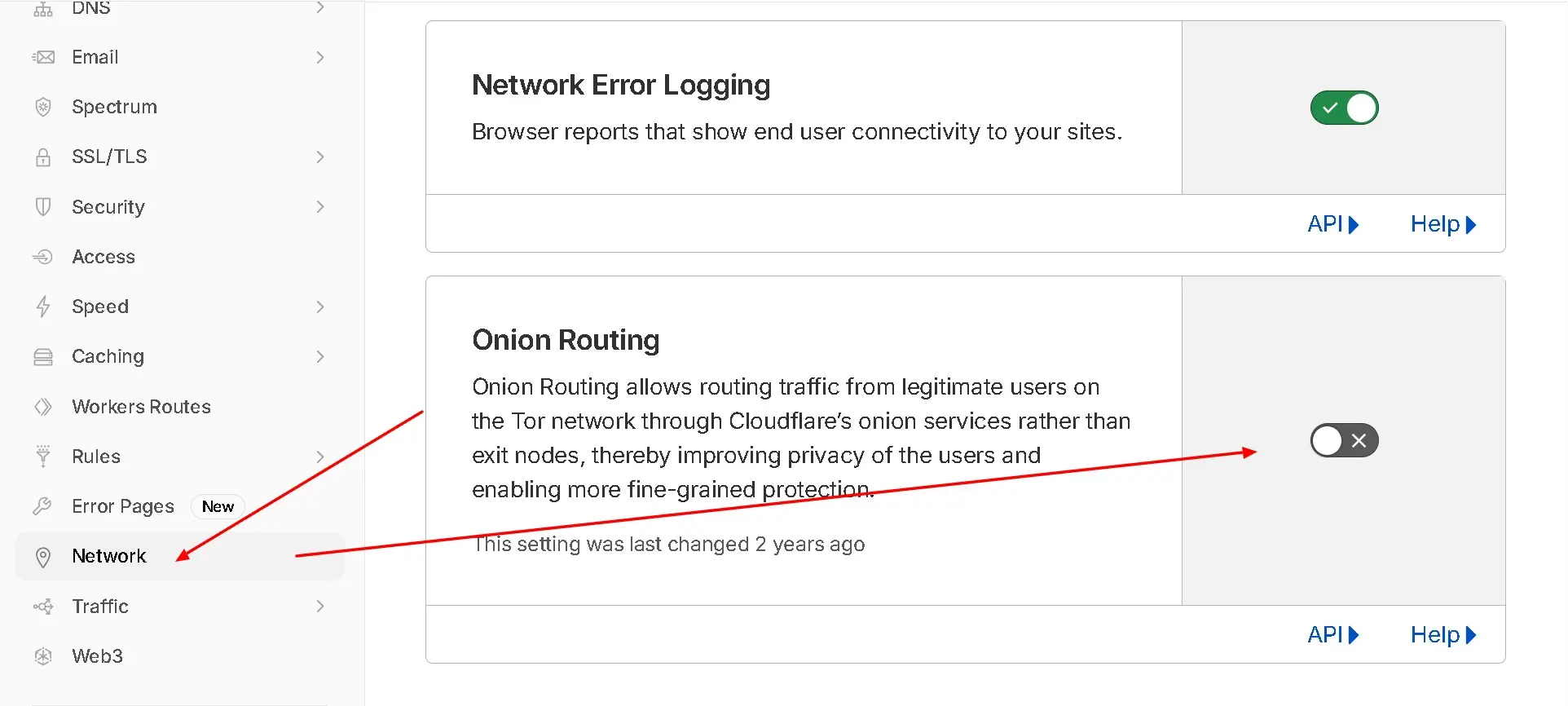
Heads Up, Also Disable Onion Routing
If you block TOR here, also disable Cloudflare's built-in Onion Routing feature under Network settings. Leaving it enabled while blocking TOR exit nodes creates a contradictory setup.
Challenge VPN & Login Paths (Screenshot)
Hosting Providers, Dangerous Paths & TOR (Screenshot)
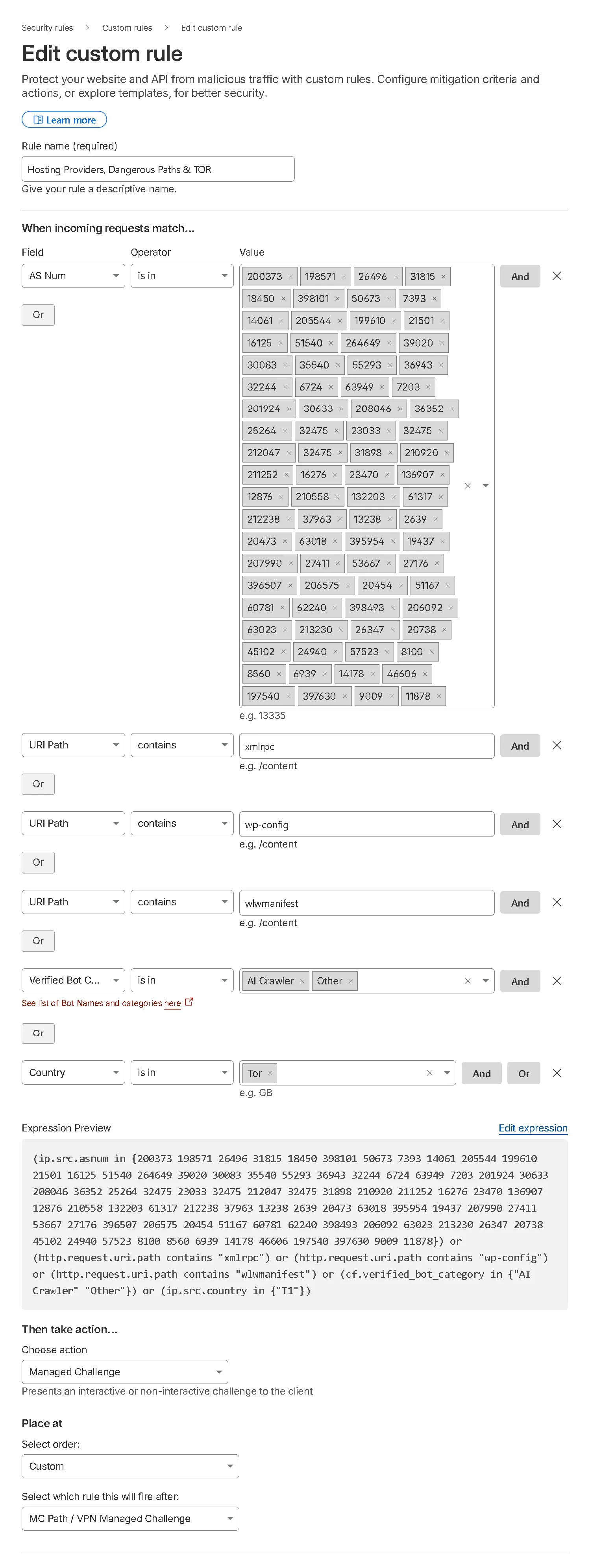
Expression
(ip.src.asnum in {60068 9009 16247 51332 212238 131199 22298 29761 62639 206150 210277 46562 8100 3214 206092 206074 206164 213074 200373 198571 26496 31815 18450 398101 50673 7393 14061 205544 199610 21501 16125 51540 264649 39020 30083 35540 55293 36943 32244 6724 63949 7203 201924 30633 208046 36352 25264 32475 23033 212047 31898 210920 211252 16276 23470 136907 12876 210558 132203 61317 37963 13238 2639 20473 63018 395954 19437 207990 27411 53667 27176 396507 206575 20454 51167 60781 62240 398493 63023 213230 26347 20738 45102 24940 57523 8560 6939 14178 46606 197540 397630 11878}) or (http.request.uri.path contains "wp-login") or (http.request.uri.path contains "xmlrpc") or (http.request.uri.path contains "wp-config") or (http.request.uri.path contains "wlwmanifest") or (ip.src.country in {"T1"})AI Crawl Control
✗ BlockDo not add a 5th custom rule
Leave this slot empty. AI Crawl Control handles this for you from its own section of the dashboard. Adding a custom rule here does nothing for AI bots. On the Free plan this matters even more since Cloudflare only allows 5 total custom rules, so filling this slot wastes your last one. If you need more than 5 rule slots, upgrade to the Pro or Business plan.
This is not a custom WAF rule
Unlike Rules 1 through 4, there is no expression to create here. Rules 1 through 4 are custom rules you build under Security → Security Rules. AI Crawl Control has its own section in the dashboard sidebar, and AI bot blocking is managed there instead. Merging the old Rules 4 and 5 above simply leaves your fifth custom rule slot open for whatever you need next.
What it does
Cloudflare's built-in AI Crawl Control lets you block or allow AI bots by category directly from your dashboard, without consuming a WAF rule slot. By merging Rules 4 and 5 above, you now have this fifth slot free to use however you need, and AI bot blocking is handled natively by Cloudflare.
Why it matters
AI crawlers from OpenAI, Google, Anthropic, and others scrape your content without permission. Cloudflare maintains and updates its AI crawler list automatically, so you get better coverage than a static WAF expression, and it won't break as new AI bots emerge.
How to enable it
AI Crawl Control is located on the left side of your Cloudflare dashboard sidebar, separate from your Security Rules. Under the main option you will see Overview, Metrics, Security, Optimization, and Signals. Go to Security to Allow or Block crawlers by name. There is no rule to save here. Toggling a crawler on or off takes effect immediately.
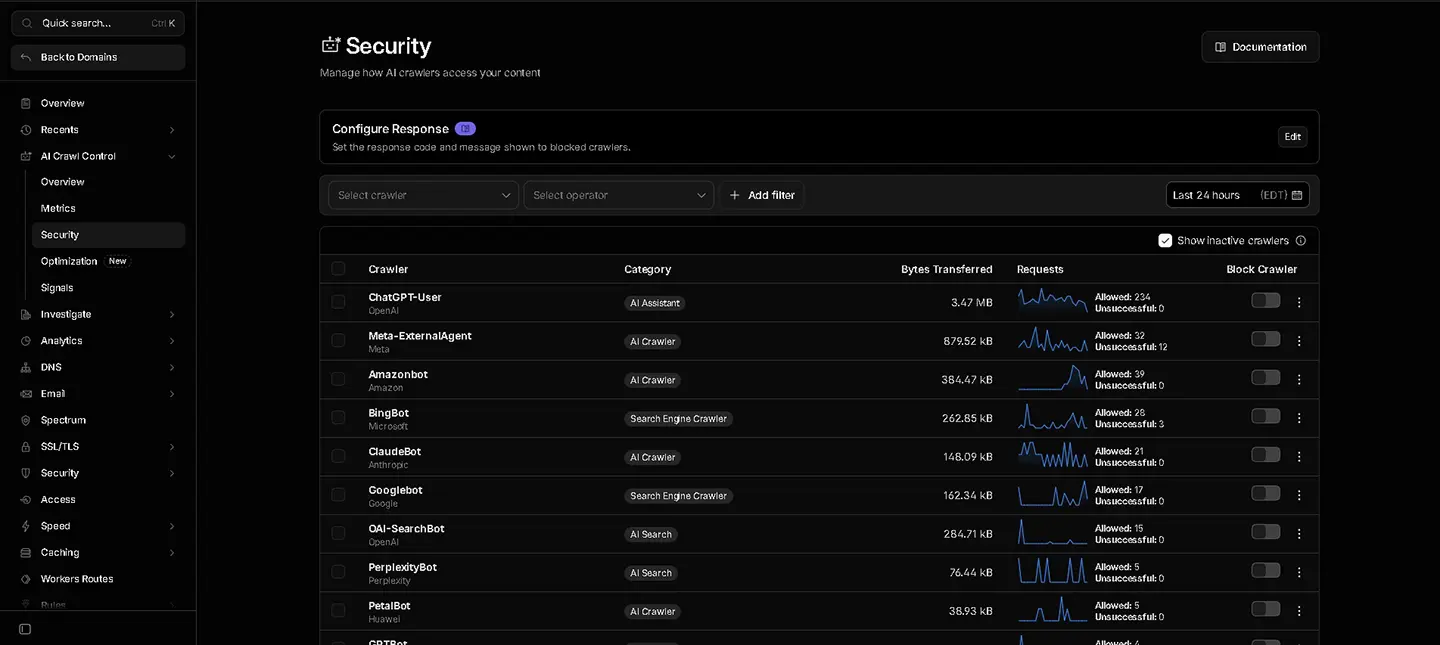
Example only. Do not use this. AI Crawl Control does it for you.
(http.request.uri.path ne "/robots.txt" and (http.user_agent contains "Amazonbot"))
Disable Onion Routing
✗ DisableWhat to do
Go to your Cloudflare dashboard → Network tab → toggle off Onion Routing. This complements Rule 05's TOR block, leaving Onion Routing enabled while blocking TOR exit nodes creates a contradictory setup. Learn more on Cloudflare's KB.
Disable Onion Routing Screenshot
Rather have us set it up for you?
We configure Cloudflare WAF rules, DNS, page rules, and security settings for agency clients every week. You get a properly configured setup without spending your afternoon on it.
White label friendly. We work directly in your client's Cloudflare account, never in yours.
See Cloudflare Support Services- ✓ WAF rules and firewall setup
- ✓ DNS configuration and migration
- ✓ SSL and HTTPS troubleshooting
- ✓ Page rules and cache settings
- ✓ Bot and attack response